Text Cards
On this page
Sometimes you don’t want to use a question/answer format.
An example would be a book/article highlight, a thought, or an idea that you want to resurface/re-read.
NeuraCache has you covered 👌
To create a Text Card, you would use a quote or callout.
STEP 1: Create a Quote
Go to our “NeuraCache Samples” page from the previous tutorial.
Create a quote by typing “/quote” — you can tap Enter as soon as you see “Quote” in the drop-down.
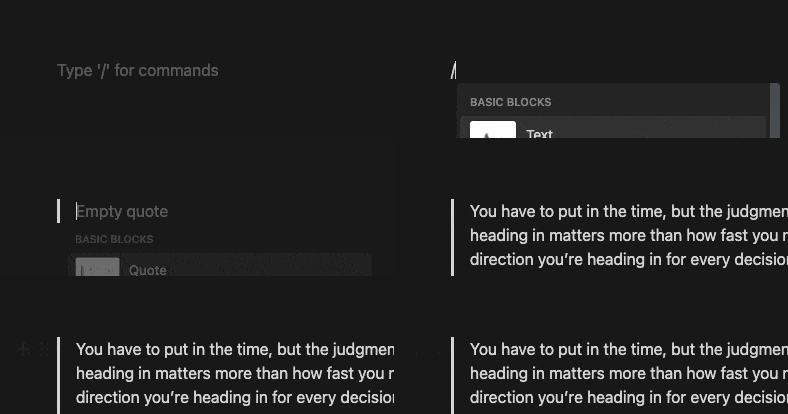
A quote can have only a single textual block.
A real-life quote might look like this (book highlight) 👇
You have to put in the time, but the judgment is more important. The direction you’re heading in matters more than how fast you move, especially with leverage. Picking the direction you’re heading in for every decision is far, far more important than how much force you apply. Just pick the right direction to start walking in, and start walking.
STEP 2: Create a Callout
Sometimes a simple textual block is not enough.
This is where Callouts come in handy 👍
Go to our “NeuraCache Samples” page from the previous tutorial.
Create a callout by typing “/callout” — you can tap Enter as soon as you see “Callout” in the drop-down.
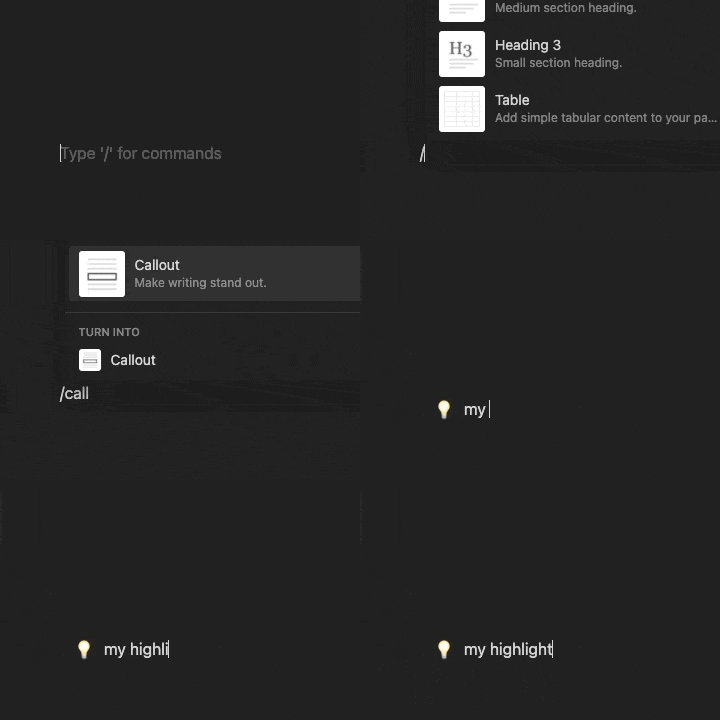
You can include anything you want in a callout:
- multiline text
- images
- latex
- bullet lists
A real-life callout might look like this (book highlight) 👇
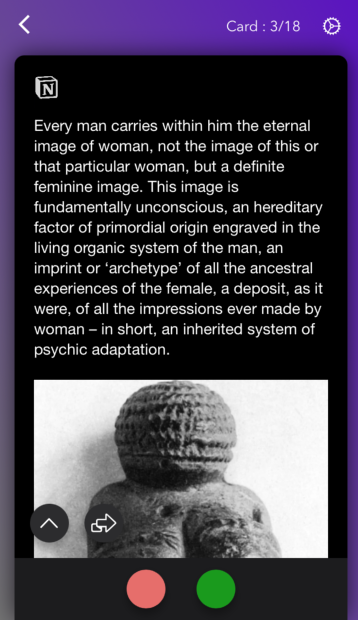
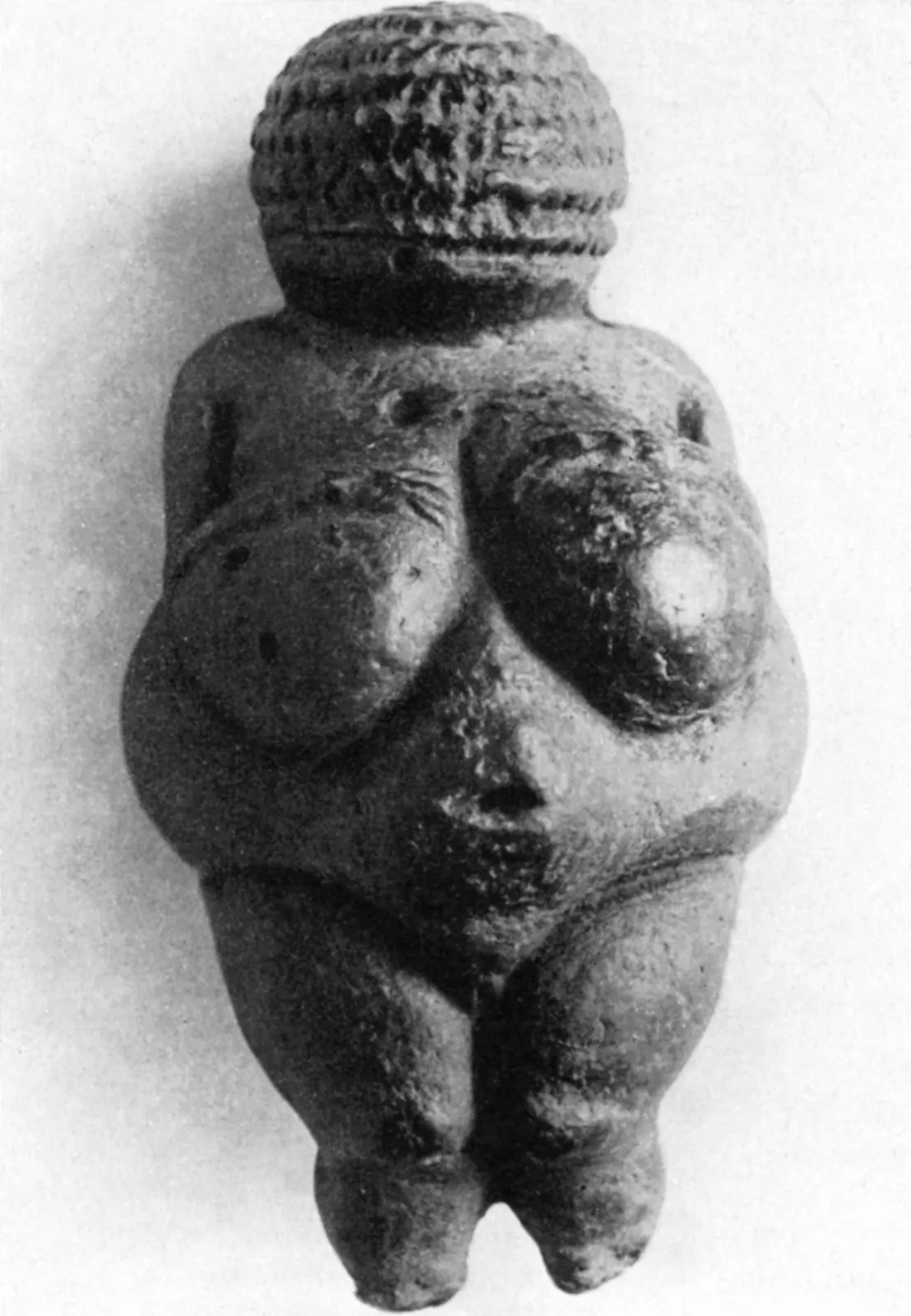
📖 “Every man carries within him the eternal image of woman, not the image of this or that particular woman, but a definite feminine image. This image is fundamentally unconscious, an hereditary factor of primordial origin engraved in the living organic system of the man, an imprint or ‘archetype’ of all the ancestral experiences of the female, a deposit, as it were, of all the impressions ever made by woman – in short, an inherited system of psychic adaptation” C.Jung
Important: The quotes and callouts need to be at the top level of the page. They cannot be nested under other blocks — otherwise NeuraCache won’t be able to find them.
STEP 3: Sync the page
This step is only needed if you haven’t yet connected and synced the page with the NeuraCache app.
If you haven’t done so yet, see this quick tutorial — 👉 How to Connect Page/Database
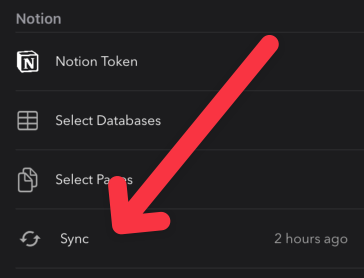
If your page is connected and synced from the app, tap the “Sync” button at the top of the “Cards” tab.
All Done 👌
The quotes and callouts are now part of your “Today’s Queue”.