
Working with Databases
On this page
Notion Toggles, Quotes and Callouts are great for regular use.
There are cases, though, where you would like to generate a lot of small cards quickly. An excellent example is learning a language — creating a toggle for each word would be 😭
NeuraCache solves this challenge with Notion Databases.
Here is a quick YouTube video showing what this looks like 👇
STEP 1: Create a Database
To create a database, start typing “/database” anywhere on your page.
You can use inline or full-page databases.
Let’s name it ”🇪🇸 Spanish”.
The emoji is not needed in the name 🙂 but it looks nicer.
You should see something like this 👇
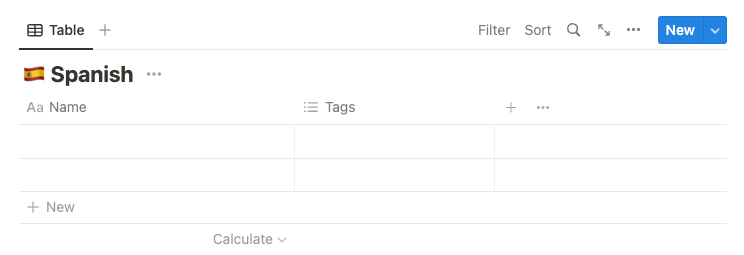
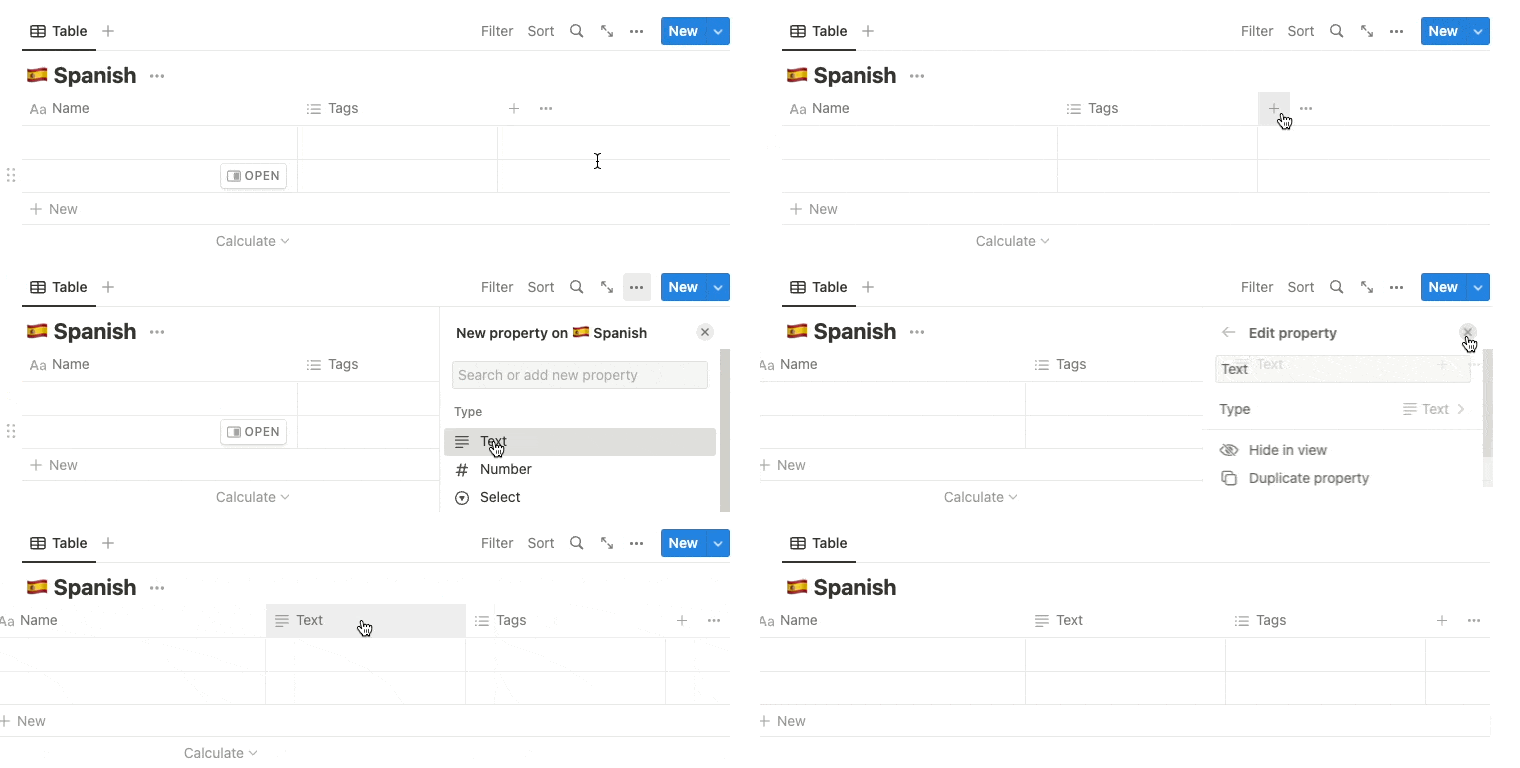
To create flashcards, we will need three columns.
- The first column of type “Title”
- The second column of type “Text”
- The third column of type “Tags” (optional)
Notice that the 1st and the 3rd columns are created by default (Name, Tags).
So the only thing we need to do is add a column of type “Text” 👀 👇
STEP 2: Connect Database with the integration
If you are on our “NeuraCache Samples” page from previous tutorials — you can skip this step as the page (and all its contents) are already shared with NeuraCache.
If you haven’t connected the Database with NeuraCache yet, please see 👉 How to Connect Page/Database
STEP 3: Add Flashcards
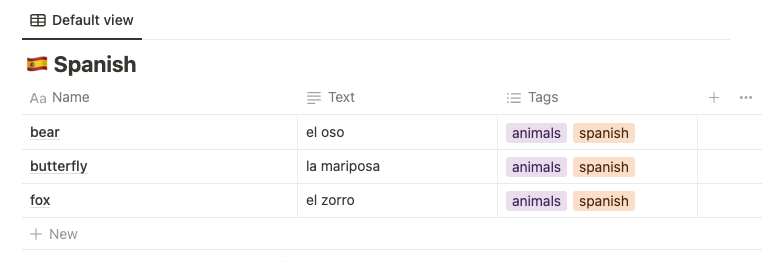
Use the “Name” column as questions and “Text” as answers.
Optionally, you can use the “Tags” column — this is super useful as it groups cards in NeuraCache across various databases 👌
STEP 4: Observe the database from the NeuraCache app
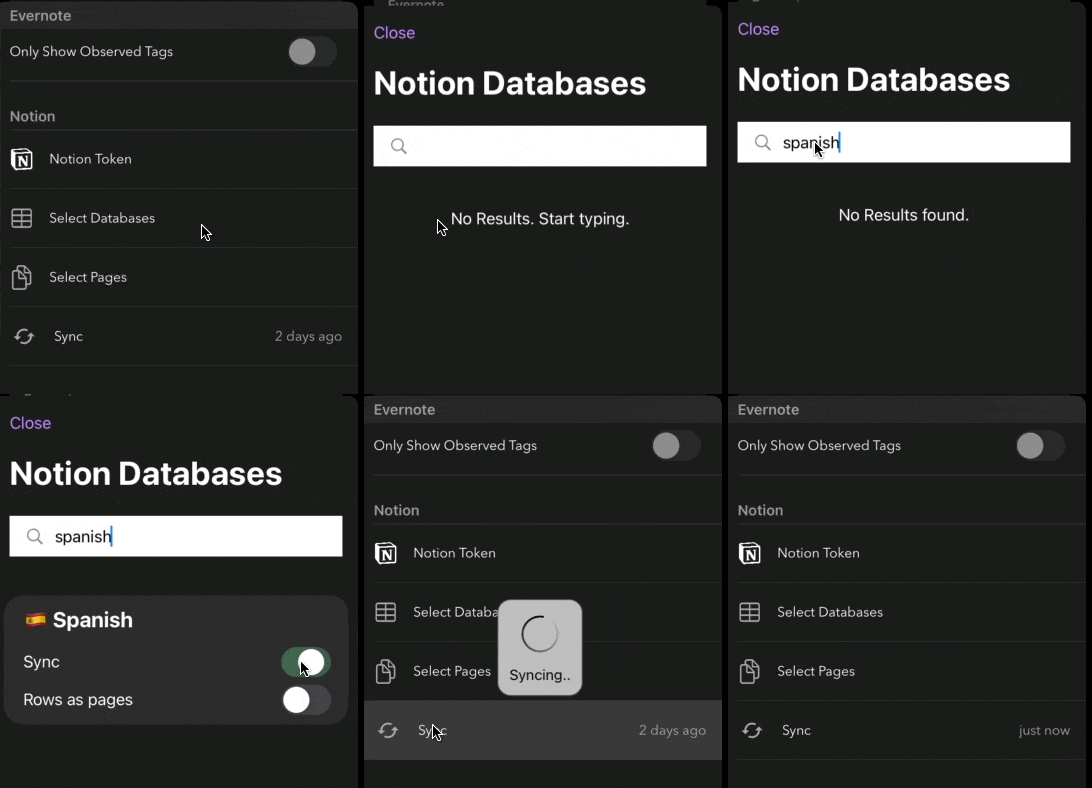
- Open the NeuraCache app
- On the “Cards” tab, tap “Sources”, then “Notion”, then “Select Databases”
- Search for the “Spanish” database
- Turn on Observe for it
- Close the selector and tap the “Sync” button at the top of the “Cards” tab
All Done 👌
You can review your cards using the “Today’s Queue” or the “Decks” tab.
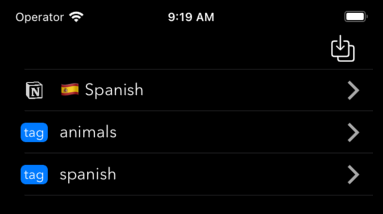
The cards will come back to you automatically using the spaced repetition algorithm. NeuraCache will reflect changes (new/updated/deleted rows) after the next sync.